
OJS user roles is what this guide covers, with the exact checks and fixes journals hit in production. More OJS help: Open Journal Systems guides.
OJS user roles
You're Setting Up Your Journal. But What Role Should Each Team Member Have?
You are building your editorial team. You have identified people who want to help manage your journal. But OJS has multiple roles, including Journal Manager, Editor-in-Chief, Section Editor, Reviewer, Author, and you are not certain what each role can and cannot do.
Assign someone the wrong role and they either have access they should not have or cannot access the tools they need. Misunderstanding roles creates confusion, slows down your editorial workflow, and can compromise the confidentiality of peer review.
Understanding OJS's role hierarchy and what permissions each role provides is essential for building a functional editorial team and securing your journal.
This guide explains every OJS user role, what each role can do, what permissions they have, and when to assign each role, written by OJS specialists who have configured editorial teams for journals across 20+ countries.
If you want an expert to set up your OJS editorial team with correct roles and permissions, visit ojsguru.com for a free consultation.
Understanding OJS Role Hierarchy
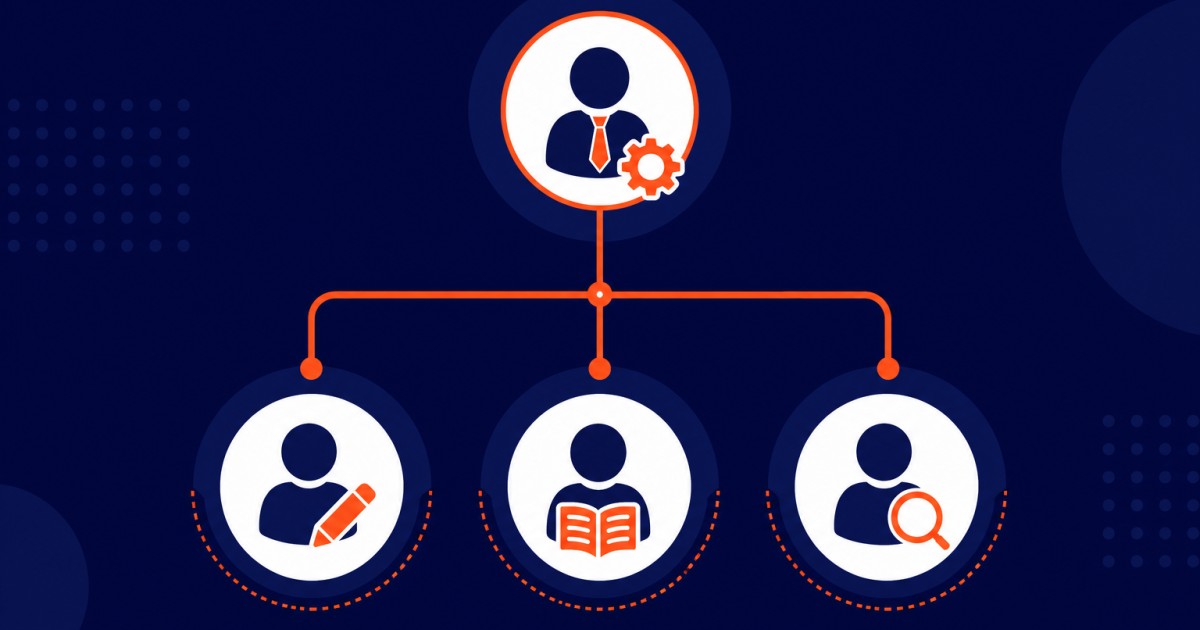
OJS roles are hierarchical. Higher roles have more permissions than lower roles.
The Role Hierarchy (highest to lowest permission level):
Site Administrator (system level, not journal-specific)
       ↓
Journal Manager (journal owner/administrator)
       ↓
Editor-in-Chief (top editorial role)
       ↓
Section Editor (section-level editorial management)
       ↓
Reviewer (peer review assignment)
       ↓
Author (manuscript submission)
       ↓
Reader (public, no login required)
Understanding this hierarchy helps you assign roles appropriately.
Role 1: Site Administrator
What is it? The highest-level system role, managing the entire OJS installation across all journals.
Who typically has this role?
- Hosting provider technical staff
- IT department managing the server
- System administrator for the organization
What can they do?
- Create and delete journals
- Manage server-level settings
- Configure plugin installations system-wide
- Access all journal administration areas
- View all user accounts across all journals
What can they NOT do?
- They usually focus on technical infrastructure, not editorial decisions
Permissions:
- Unrestricted access to all system settings
When to assign: Only assign to IT staff or hosting administrators. Most journal editors will never need this role.
Role 2: Journal Manager
What is it? The journal owner or top administrator role. Full control over a specific journal's settings and operations.
Who typically has this role?
- Journal owner
- Senior editor
- Journal administrator
- Publisher representative
What can they do?
- Change all journal settings (title, aims, scope, policies)
- Configure workflow (submission stages, review settings)
- Create and manage all user accounts
- Assign roles to team members
- View all submissions and editorial decisions
- Generate reports and analytics
- Manage journal sections and issue structure
- Configure plugins and extensions
- Enable/disable features
What can they NOT do?
- They can oversee but do not typically make individual editorial decisions (that is Editor-in-Chief's role)
Permissions:
- Nearly unrestricted access to journal administration
When to assign: Assign to 1-3 people maximum. Usually the journal owner, publisher representative, or senior administrator.
Example workflow: Journal Manager creates the journal structure, configures settings, and creates accounts for Editors-in-Chief and Section Editors.
Role 3: Editor-in-Chief
What is it? The top editorial decision-maker. Responsible for editorial standards, final acceptance/rejection decisions, and overall journal quality.
Who typically has this role?
- Founding editor or Editor-in-Chief
- Senior scholar in the field
- Publisher's editorial representative
What can they do?
- Access all submissions at all stages
- Make final editorial decisions (Accept/Reject/Revisions)
- Send decision letters to authors
- View all reviewer feedback
- Communicate with authors and editors
- View editorial reports and statistics
- Make editorial recommendations to authors
What can they NOT do?
- Change journal settings or configuration (Journal Manager does that)
- Create new user accounts (Journal Manager does that)
- Modify submission settings or workflow rules
Permissions:
- Full access to all submissions and editorial functions
- Can see all submissions across all sections
- Can override editorial decisions if needed
When to assign: Assign to 1-2 people. Usually the journal's Editor-in-Chief or top editorial leader.
Example workflow: Section Editors send editorial recommendations. Editor-in-Chief reviews and makes final decision.
Role 4: Section Editor
What is it? An editor responsible for a specific section or topic area of the journal. Manages submissions within that section, assigns reviewers, and makes editorial recommendations.
Who typically has this role?
- Associate editors
- Topic experts
- Senior researchers in a specific field
- Disciplinary specialists
What can they do?
- View submissions assigned to their section(s)
- Invite reviewers to review submissions
- Track review progress and send reminders
- Communicate with reviewers privately
- Read and evaluate reviewer feedback
- Make editorial recommendations (to Editor-in-Chief)
- Send revision requests to authors
- Communicate with authors about their submissions
What can they NOT do?
- Access submissions in other sections (not assigned to them)
- Make final acceptance/rejection decisions (Editor-in-Chief does that)
- View submissions from other sections
- Change journal settings
- Create user accounts
Permissions:
- Limited to their assigned section(s)
- Can see all submissions in those sections
- Full reviewer management within their section
- Cannot see submissions in other sections
When to assign: Assign to 2-10+ people depending on journal size. One per journal section is typical.
Example workflow: Author submits article to Research Articles section. Section Editor for Research Articles reviews it, assigns 2 reviewers, tracks their progress, and sends a recommendation to Editor-in-Chief.
Role 5: Reviewer
What is it? A peer expert who evaluates submissions and provides feedback. Reviewers are the foundation of peer review.
Who typically has this role?
- Researchers with relevant expertise
- Professionals in the field
- Junior and senior scholars
- International experts
What can they do?
- View the submission they are invited to review
- Access the manuscript and supporting materials
- Complete and submit a structured review
- Provide a recommendation (Accept/Revisions/Reject)
- View the review form with questions to answer
- Submit confidential comments to the editor
What can they NOT do?
- See other reviewers' reviews (in double-blind review)
- See the author's identity (in double-blind review)
- Access other submissions they are not assigned to
- Make editorial decisions
- Change any settings
Permissions:
- Access only to their assigned submission
- Can view manuscript and related files
- Can complete review form
- Cannot see editorial decisions or other submissions
When to assign: Create reviewer accounts for everyone in your reviewer pool. You may have 50-500+ reviewer accounts depending on journal size.
Example workflow: Section Editor invites Jane Smith as a reviewer. Jane logs in, reads the manuscript, completes the review form with feedback and recommendation, and submits. Section Editor then sees Jane's review.
Role 6: Author
What is it? A person submitting manuscripts for publication. Authors can view their own submissions but not other authors' work.
Who has this role?
- Anyone submitting a manuscript
- Researchers publishing their work
- Research teams
What can they do?
- Create an account
- Submit a new manuscript
- View their own submission(s)
- Track submission status (Under Review, Accepted, etc.)
- View reviewer feedback (with reviewer names hidden in double-blind)
- Upload revised manuscripts if revisions are requested
- Communicate with editors about their submission
What can they NOT do?
- See other authors' submissions
- View unreleased submissions
- Access editorial decisions before they are sent
- See full reviewer names (in double-blind)
- Publish their article themselves
Permissions:
- Access only their own submission(s)
- View submission status and history
- Communicate with editors
When to assign: Authors are automatically created when they submit their first manuscript. No action needed.
Example workflow: Author visits your journal, clicks "New Submission," creates an account, and submits a manuscript. They can then log in anytime to check status.
Role 7: Reader
What is it? Any member of the public visiting your journal. Does not require a login.
Who has this role?
- Everyone visiting your journal
- Anyone reading published articles
- Search engines indexing your content
What can they do?
- View published articles
- Search the journal
- Read about the journal's aims and scope
- Access the article archive
What can they NOT do?
- Submit manuscripts
- Access unpublished submissions
- View editorial information
- Change any settings
Permissions:
- View only published content
- No login required
When to assign: This is the default for anyone not logged in. No action needed.
How Roles Interact: A Complete Editorial Workflow
Understanding how roles work together clarifies the purpose of each.
Submission Stage:
- Author submits a manuscript
- Section Editor receives the submission in their section
- Journal Manager can view but does not manage day-to-day
Review Stage:
- Section Editor invites Reviewers to review
- Reviewers submit their evaluations
- Section Editor reads reviews and makes a recommendation
Editorial Decision Stage:
- Editor-in-Chief reads the recommendation and reviews
- Editor-in-Chief makes final decision (Accept/Reject/Revisions)
- Section Editor implements the decision and communicates with author
Copyediting and Publication:
- Editor-in-Chief oversees copyediting
- Author approves final version if needed
- Journal Manager schedules issue and publishes
- Readers access the published article
Each role serves a specific purpose in this workflow.
Choosing the Right Role for Team Members
For Your Journal Owner/Publisher: → Assign Journal Manager
For Your Top Editorial Leader: → Assign Editor-in-Chief
For Section Managers (if you have multiple sections): → Assign Section Editor with appropriate sections
For Peer Reviewers: → Assign Reviewer
For Everyone Else Submitting: → They automatically get Author role on first submission
Permission Matrix: Quick Reference
| Capability | Journal Manager | Editor-in-Chief | Section Editor | Reviewer | Author |
|---|---|---|---|---|---|
| Change journal settings | ✅ | ❌ | ❌ | ❌ | ❌ |
| View all submissions | ✅ | ✅ | ✅* | ❌ | ✅** |
| Assign reviewers | ✅ | ✅ | ✅ | ❌ | ❌ |
| Make final decisions | ✅ | ✅ | ❌ | ❌ | ❌ |
| Access assigned reviews | ✅ | ✅ | ✅ | ✅ | ✅*** |
| Create user accounts | ✅ | ❌ | ❌ | ❌ | ❌ |
| Submit articles | ✅ | ✅ | ✅ | ✅ | ✅ |
Section Editor sees only their assigned sections <strong>Author sees only their own submissions </strong>Author sees reviews with reviewer names hidden (in double-blind)
Common Role Assignment Mistakes
Mistake 1: Making everyone a Journal Manager
You assign Journal Manager role to everyone to "give them access." This is a security risk.
Fix:
- Assign Journal Manager only to 1-3 top administrators
- Use more restrictive roles (Section Editor, Reviewer) for others
- Principle of least privilege: give people only the access they need
Mistake 2: Assigning Section Editor but not assigning their sections
A new section editor is created but no sections are assigned. They cannot see submissions.
Fix:
- When creating a Section Editor, always assign specific sections
- Verify they can see submissions in those sections after creation
Mistake 3: Making editors Reviewers when they should be Section Editors
You assign a senior editor the Reviewer role instead of Section Editor. They cannot access editorial functions.
Fix:
- Use Section Editor for anyone managing submissions
- Use Reviewer only for external peer reviewers
- One person can have multiple roles, but understand what each does
Mistake 4: Not understanding role restrictions
A Section Editor tries to access submissions from another section and wonders why they cannot see them.
Fix:
- Communicate that Section Editors have access only to their assigned sections
- This is a security feature protecting confidentiality
Multiple Roles and Hybrid Arrangements
A single person can have multiple roles. Examples:
Editor-in-Chief + Section Editor: The EIC also manages a specific section. This is common in smaller journals.
Section Editor + Reviewer: A section editor can also accept reviewer assignments. Common and encouraged to distribute workload.
Author + Reviewer: A researcher publishing with your journal can also review for your journal. Very common.
To assign multiple roles to one person:
- Go to Users & Roles → Users
- Find the user
- Click to edit
- Check multiple role checkboxes
- Save
When to Call in a Professional
Role and permission management is straightforward, but some journals benefit from expert guidance:
- You are setting up an editorial team for the first time
- You have a complex editorial structure and want optimal role assignments
- You want to ensure roles match your editorial workflow
- You need help documenting your editorial structure for DOAJ or other evaluators
OJS Guru sets up editorial team structures and role assignments, ensuring every team member has appropriate access and permissions for their responsibilities.
👉 Get a free consultation at ojsguru.com
Summary
OJS user roles create a hierarchical permission structure that protects confidentiality, enables collaboration, and ensures each team member has access to exactly what they need.
The seven core roles are:
- Site Administrator, System-level access (usually hosting provider)
- Journal Manager, Journal owner/administrator level
- Editor-in-Chief, Top editorial decision-maker
- Section Editor, Section-level editorial management
- Reviewer, Peer review assignment and evaluation
- Author, Manuscript submission and tracking
- Reader, Public access to published content
Understanding these roles, what each can and cannot do, and how they interact enables you to build a functional editorial team and editorial workflow.
If you want expert help structuring your OJS editorial team, contact OJS Guru at ojsguru.com. We design editorial structures that work for journals of all sizes.
OJS Guru is a professional Open Journal Systems service provider specializing in OJS installation, customization, migration, and technical support for research journal publishers in 20+ countries. Visit ojsguru.com to request a free consultation.
